
Sessions
Learn how to participate in workflow sessions, complete stages, and navigate the session interface.
Sessions are where the actual work happens in Eddy. When participants start a workflow, they enter a session where they can complete stages, fill out forms, and progress through the workflow.
Starting a Session
When you click a start link, you'll see a landing page with details about the workflow. Click Start Session to begin.
The Session Interface
Once you start a session, you'll see the stage dialog with your first task.
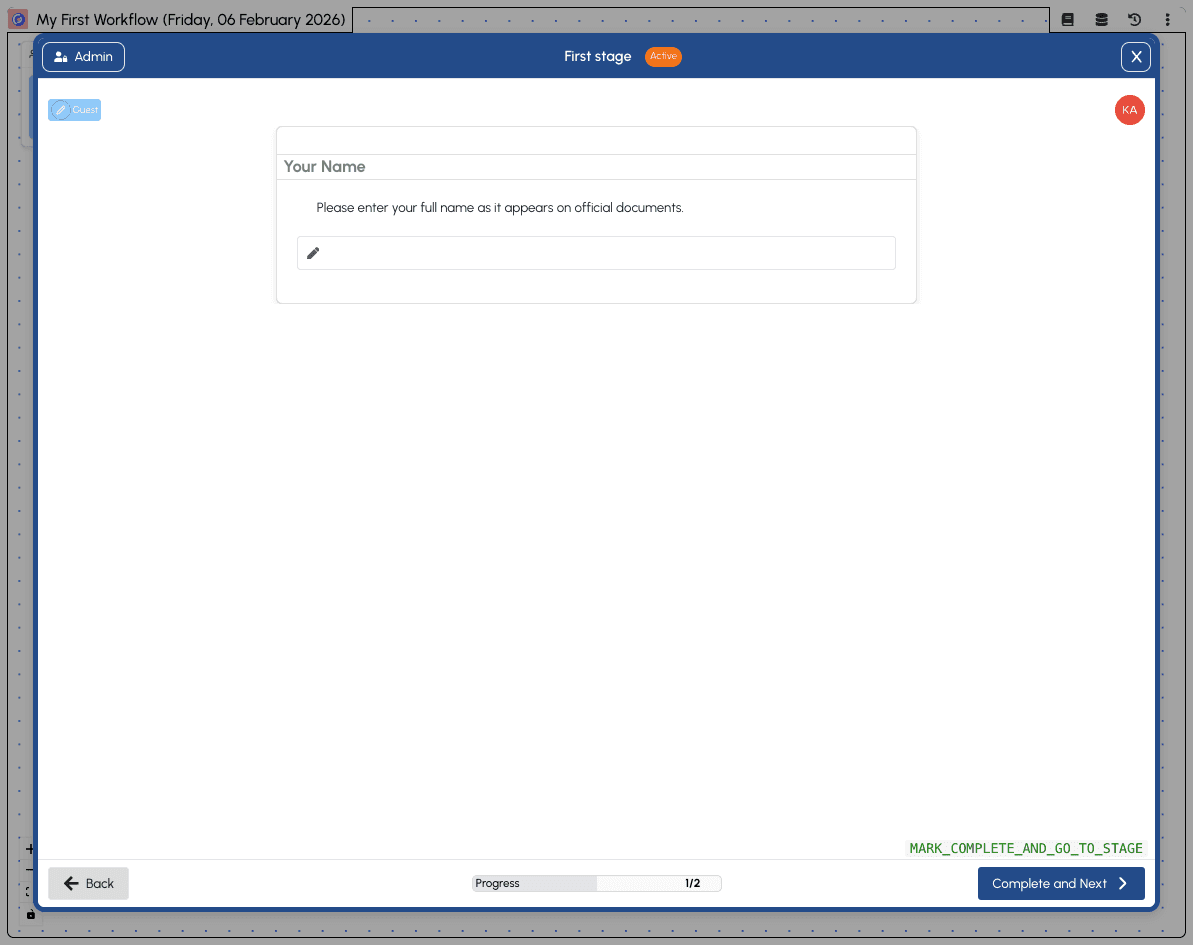
The session interface includes:
- Header bar - Shows the workflow name and current date
- Admin button - Access administrative features (if you have admin permissions)
- Stage title - "First stage" with an "Active" badge indicating it's your current stage
- Role badge - Shows your assigned role (e.g., "Guest")
- Form content - The fields and blocks configured for this stage
- Progress bar - Shows how far you are through the workflow (e.g., "1/2")
- Navigation buttons - "Back" to go to the previous stage, "Complete and Next" to progress
The Session Map
Close the dialog by clicking the X button to see the session map.
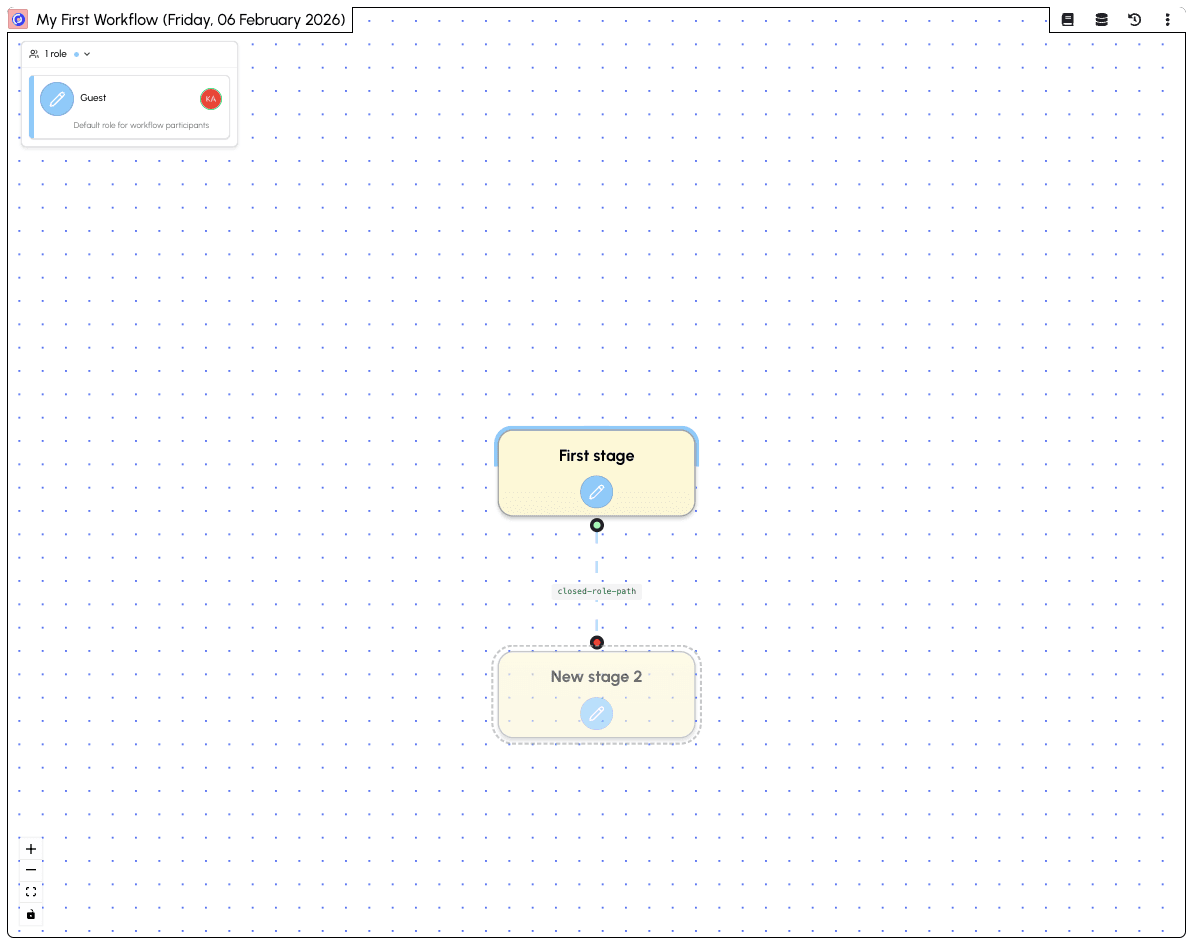
The session map shows:
- Visual workflow - All stages displayed as connected nodes
- Your progress - Active stages are highlighted, completed stages show a checkmark
- Role panel - Shows your assigned roles and descriptions
- Zoom controls - Zoom in/out and fit view to canvas
Click on any stage node to open its dialog and view or complete its content.
Completing a Stage
To complete a stage:
- Open the stage - Click on the stage node in the map
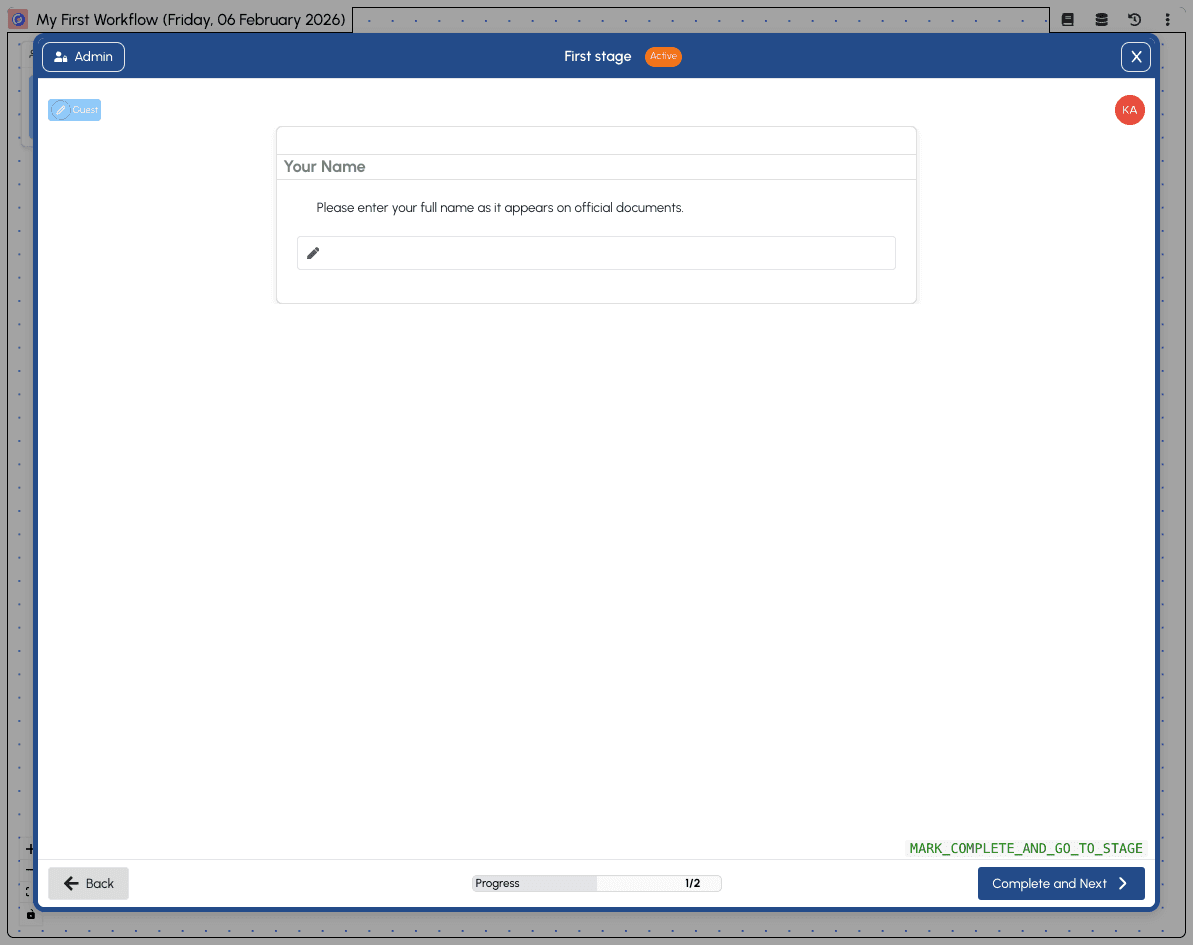
- Fill in the required fields - Enter information in any form fields
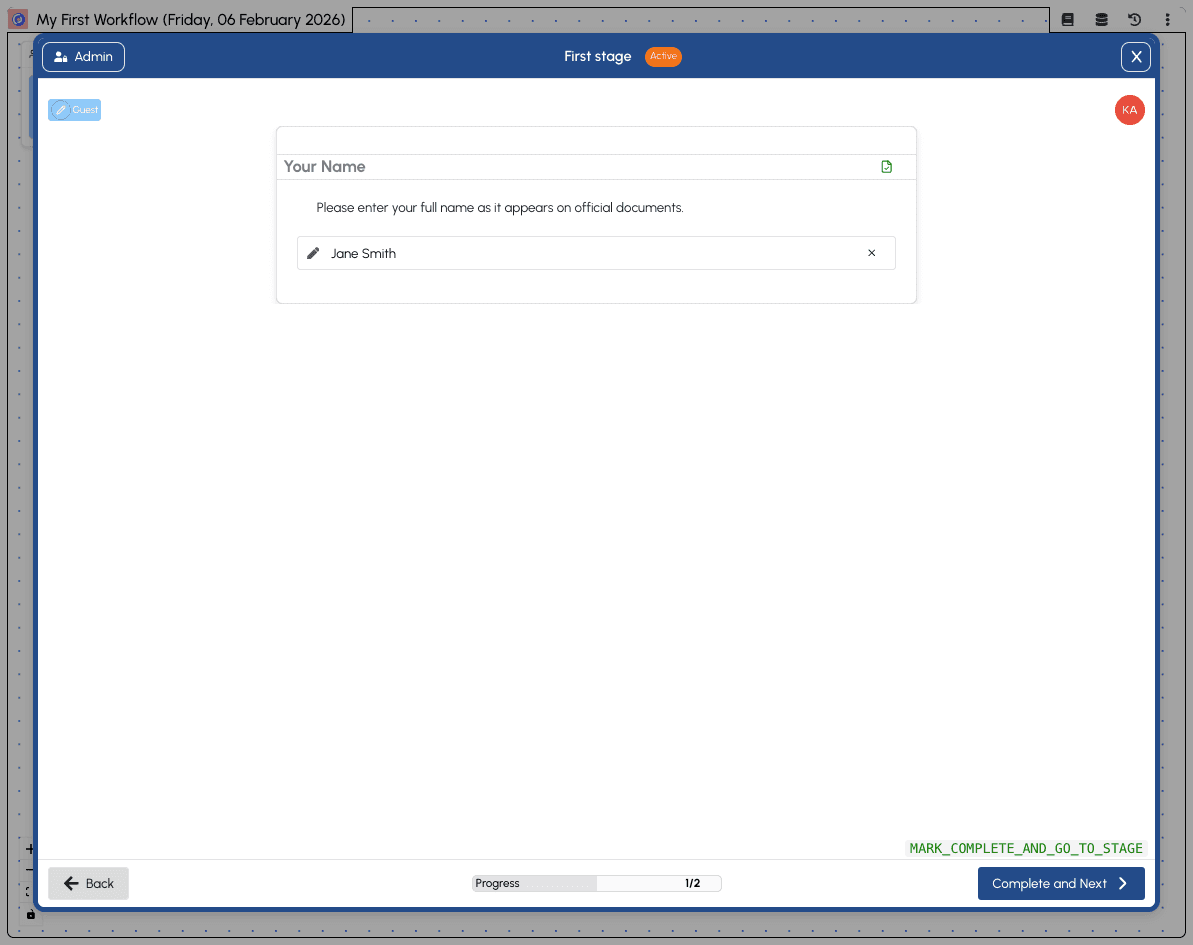
- Click "Complete and Next" - This marks the stage as complete and moves you to the next stage
Progressing Through Stages
After completing the first stage, you'll automatically move to the next stage.
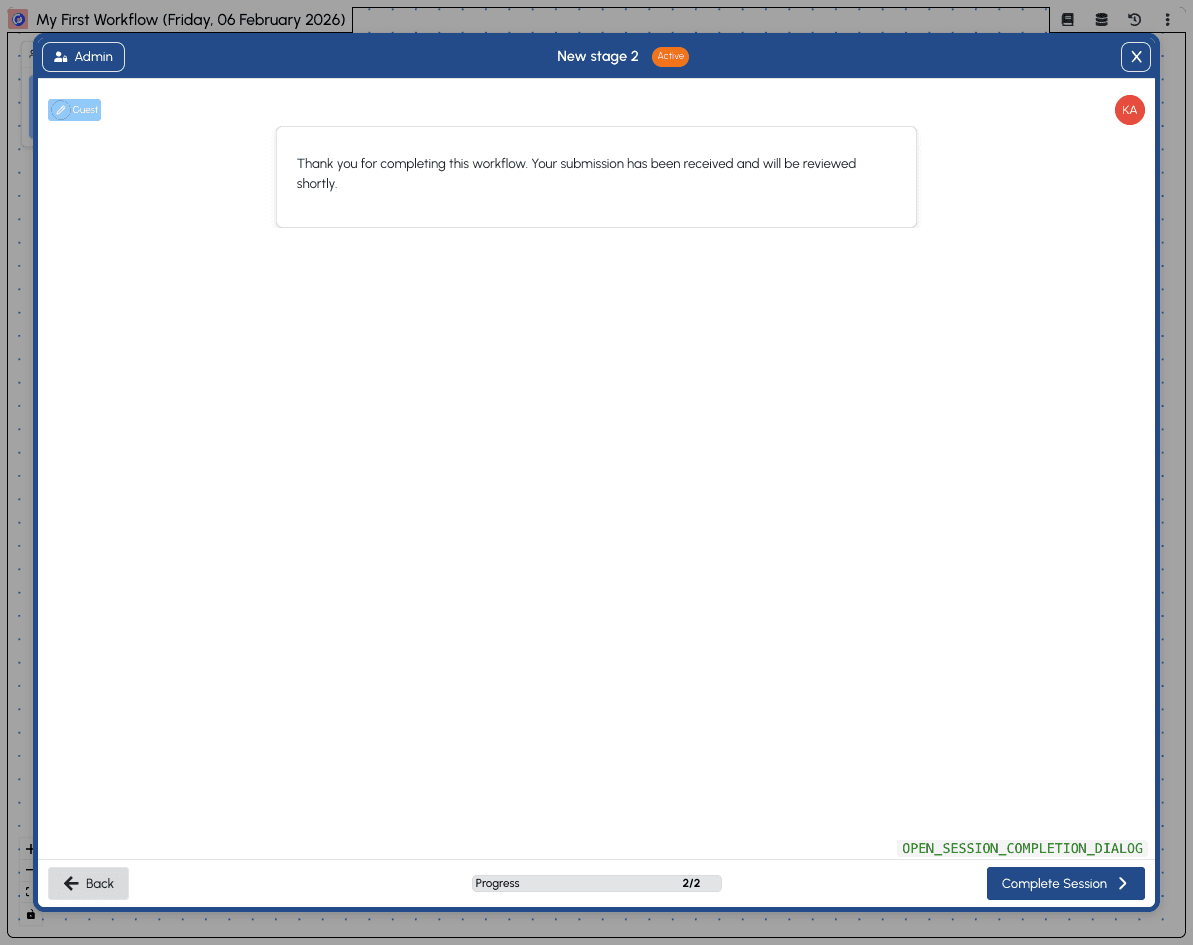
The second stage in our example workflow shows:
- Content block - Displays the thank you message we configured
- Progress - Updated to "2/2" indicating this is the final stage
- Complete Session button - Since this is the end stage, the button changes from "Complete and Next" to "Complete Session"
Support Threads
Each session has a built-in support thread — a conversation between participants and session admins. Use it when you're stuck, have a question about the workflow, or need to flag something to the people managing the process.
Requesting help
Click the Support button (headset icon) in the session header to open the support dialog. Type your message and send it. The thread is created with your first message — there's no setup needed.
Workspace admins and session admins are notified when you send a message. They can read your message and respond directly in the same thread. The conversation updates in real time — you'll see replies appear as they're sent.
A red dot appears on the Support button when there are unread replies, so you won't miss a response.
Responding to support requests (admins)
Session admins see the same support dialog and can respond to participant messages directly. When you open the dialog, any unread messages are automatically marked as read.
Once the issue is resolved, click the Resolve button to mark the thread as resolved. A green "Resolved" badge appears on the thread. Resolved threads can still receive new messages if the conversation needs to continue.
Support threads are also surfaced in the Operator view's Support panel, where admins can see all threads across sessions for a workflow — both resolved and unresolved — and click through to the relevant session.
Completing the Session
When you reach the final stage and click Complete Session, a confirmation dialog appears.
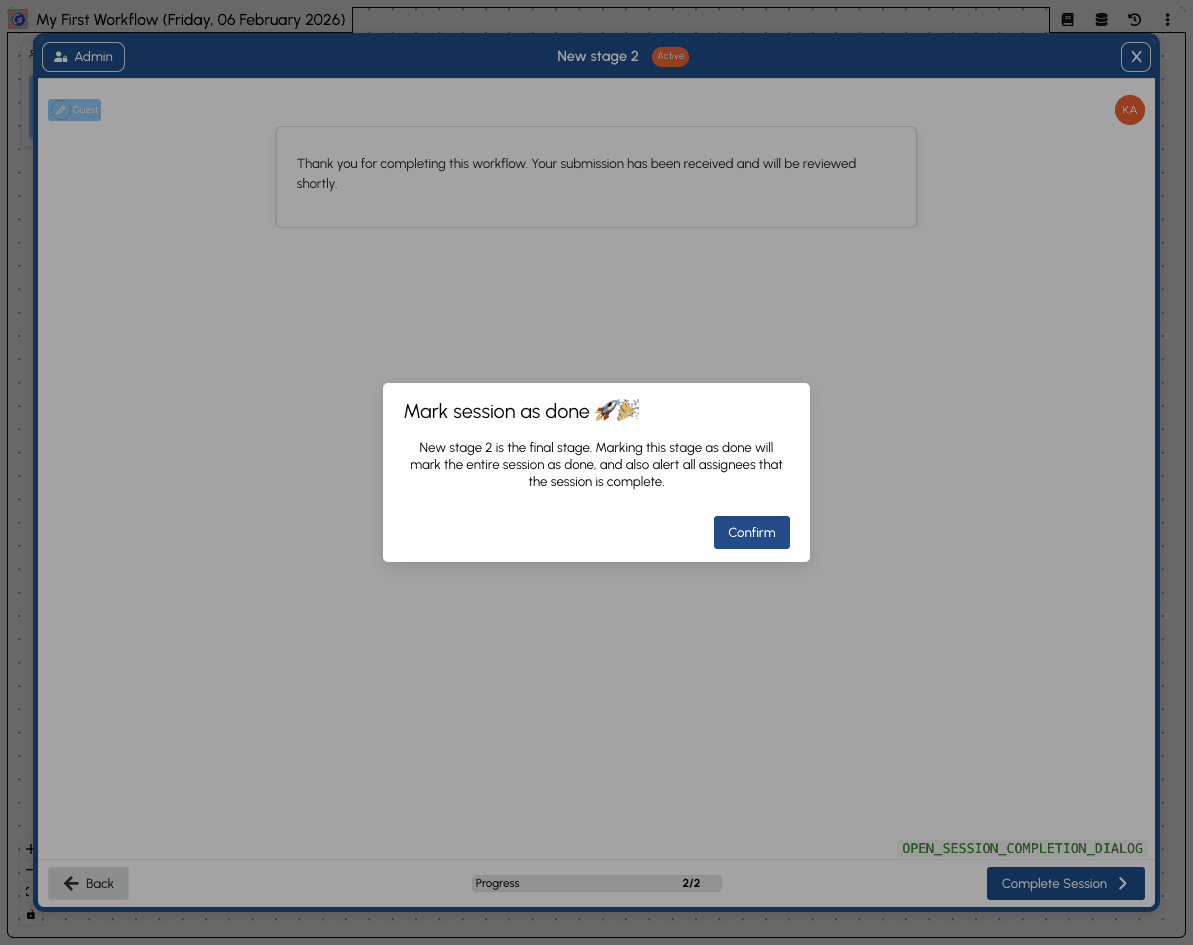
The confirmation explains that completing this stage will:
- Mark the entire session as done
- Alert all assignees that the session is complete
Click Confirm to complete the session.
Session Completed
Once confirmed, you'll see the completed session view.
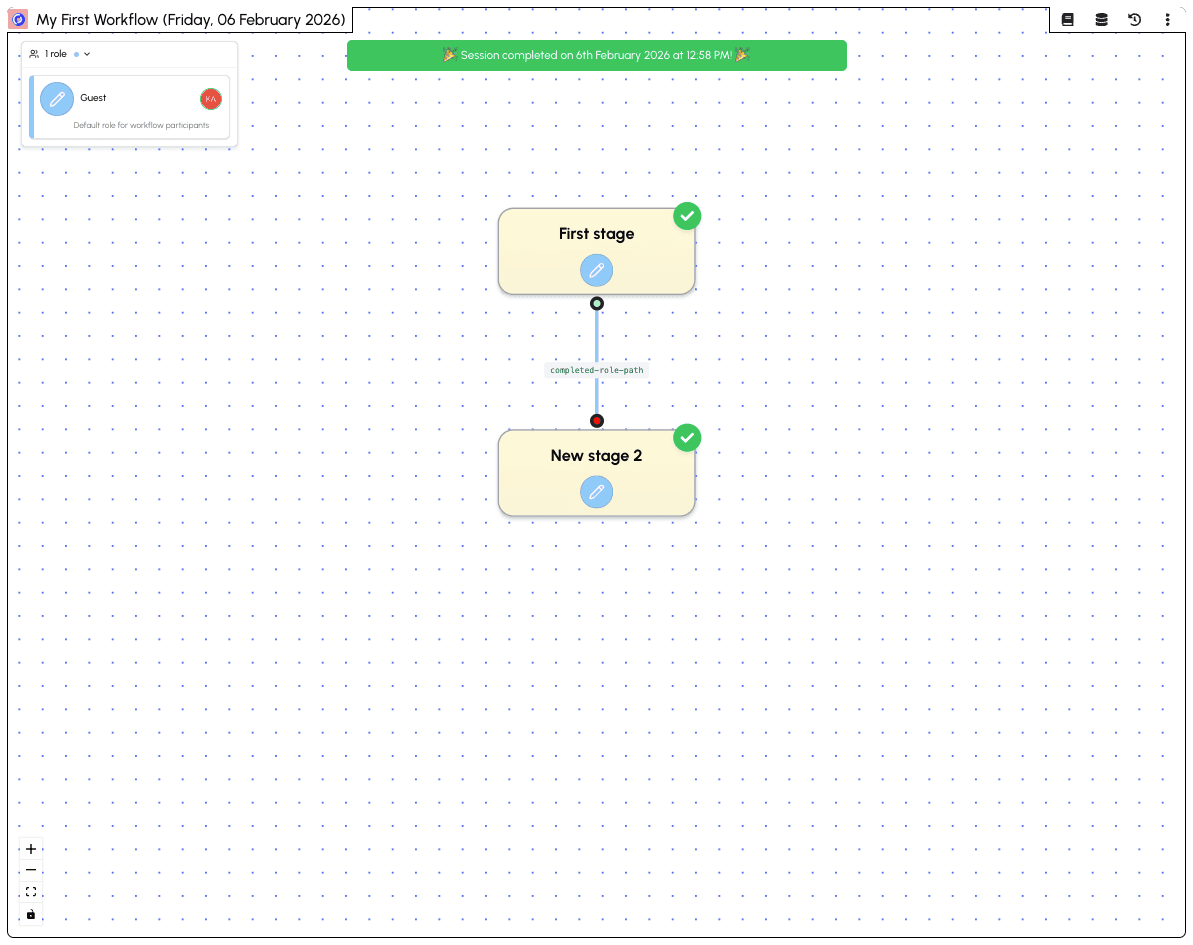
The completed session shows:
- Celebration banner - "Session completed on [date] at [time]"
- Green checkmarks - All stages show completion checkmarks
- Completed path - The connection between stages shows "completed-role-path"
Your session data has been saved and can be viewed by workflow administrators in the Data section.
Next steps: Learn how to view and manage your collected data in the Sheets section, or see how administrators can monitor running sessions in the Operator view.
Managing Sessions
Session admins have access to additional actions for managing running sessions — correcting mistakes, unblocking stuck workflows, and keeping things moving.
Who is a session admin?
You are a session admin if any of the following apply:
- You are a workspace owner, admin, or builder
- You are a system superadmin
- You hold a workflow role that has session admin enabled (configured in the builder's role settings)
Session admins can open and view any stage in the session, even stages they aren't assigned to. A yellow "Viewing as admin" banner appears when viewing a stage you're not assigned to. Viewing access doesn't grant write or completion permissions — you can inspect, but only assigned participants can fill in data and progress.
Stage actions
When viewing a stage as a session admin, an Admin button appears in the stage dialog header. It opens a menu with the following actions:
Rewind — Move the session back to the previous stage. This deactivates the current stage and reactivates the predecessor, allowing participants to rework it. Use this when a stage was completed prematurely or with incorrect data. Rewind is available when the current stage is active.
Reopen Stage — Reactivate a completed stage so it can be worked on again. Unlike rewind, this doesn't deactivate any subsequent stages — it simply reopens the completed stage for further editing. Use this when data on a completed stage needs correction but later stages should remain unaffected. Reopen is available when the current stage is completed.
Mark Complete — Force-complete an active stage as an admin, triggering progression to the next stage. Use this to unblock a session when a participant is unavailable or a stage is stuck. This bypasses the normal completion flow — the admin's action is treated as the completing event.
Nudge — Send a reminder notification to all participants assigned to the current stage. Use this when a stage has been active for too long and assignees may need a prompt. A dialog lets you add an optional message to the nudge. Nudge is available when the stage is active and has assignees.
Session actions
The session options menu (accessible from the top bar) provides session-level actions:
Assign Roles — Open the role assignment dialog to manage who holds each workflow role for this session. You can add or remove participants from roles, which determines who gets assigned to upcoming stages.
Reopen Session — Reopen a session that has already been completed. This clears the completion status and lets participants resume where they left off. Available when the session is completed.
Archive — Archive the session. Archived sessions are hidden from the default session list but their data is preserved.
When to use each action
| Situation | Action |
|---|---|
| A participant completed a stage with wrong data and needs to redo it | Rewind to the previous stage |
| A completed stage needs a small correction but later work is fine | Reopen Stage on the completed stage |
| A participant is unavailable and the session is stuck | Mark Complete to force progression |
| Participants seem to have forgotten about an active stage | Nudge to send a reminder |
| A new team member needs to join mid-session | Assign Roles to add them to a role |
| A session was completed too early and needs more work | Reopen Session |
| A session was started by mistake or is no longer needed | Archive the session |