
Getting Started
Sign up, open the dashboard, and create your first workspace and Map.
Landing Page
The first screen is Eddy's sign-in page.
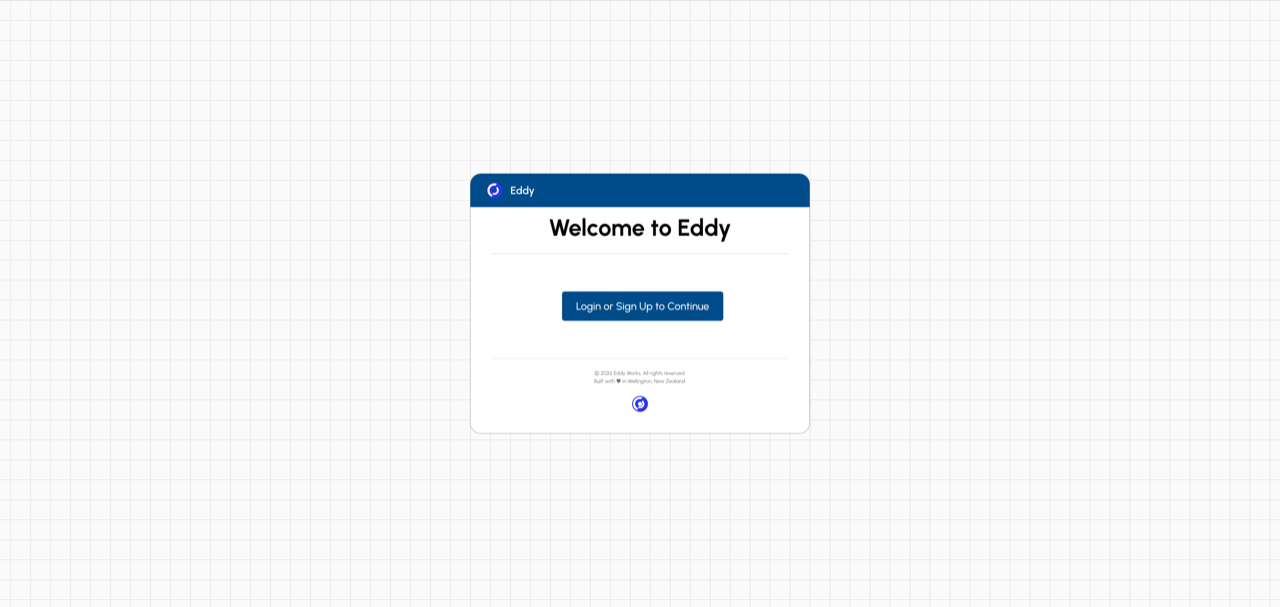
Click "Login or Sign Up to Continue" to sign in.
Authentication
After clicking "Login or Sign Up to Continue", Eddy opens the authentication page.
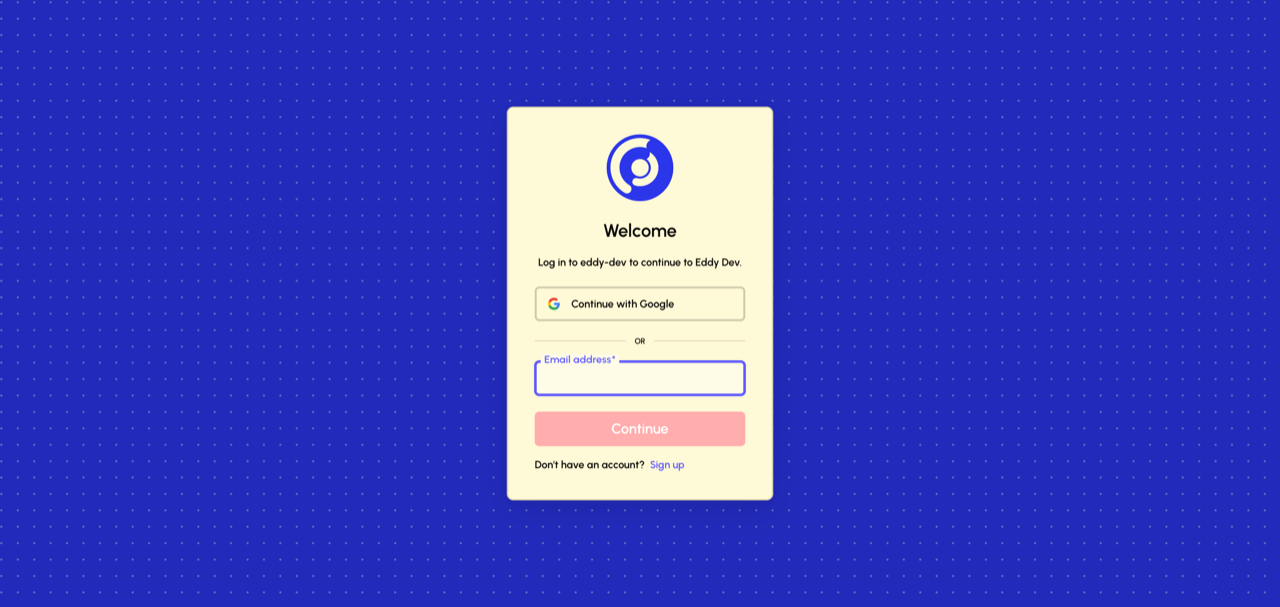
Choose one of two sign-in methods:
- Continue with Google — sign in with a Google account
- Email address — enter your email and click Continue to receive a passwordless sign-in link
If you don't have an account yet, click the "Sign up" link to create one.
Home Dashboard
After logging in, you'll land on your home dashboard.
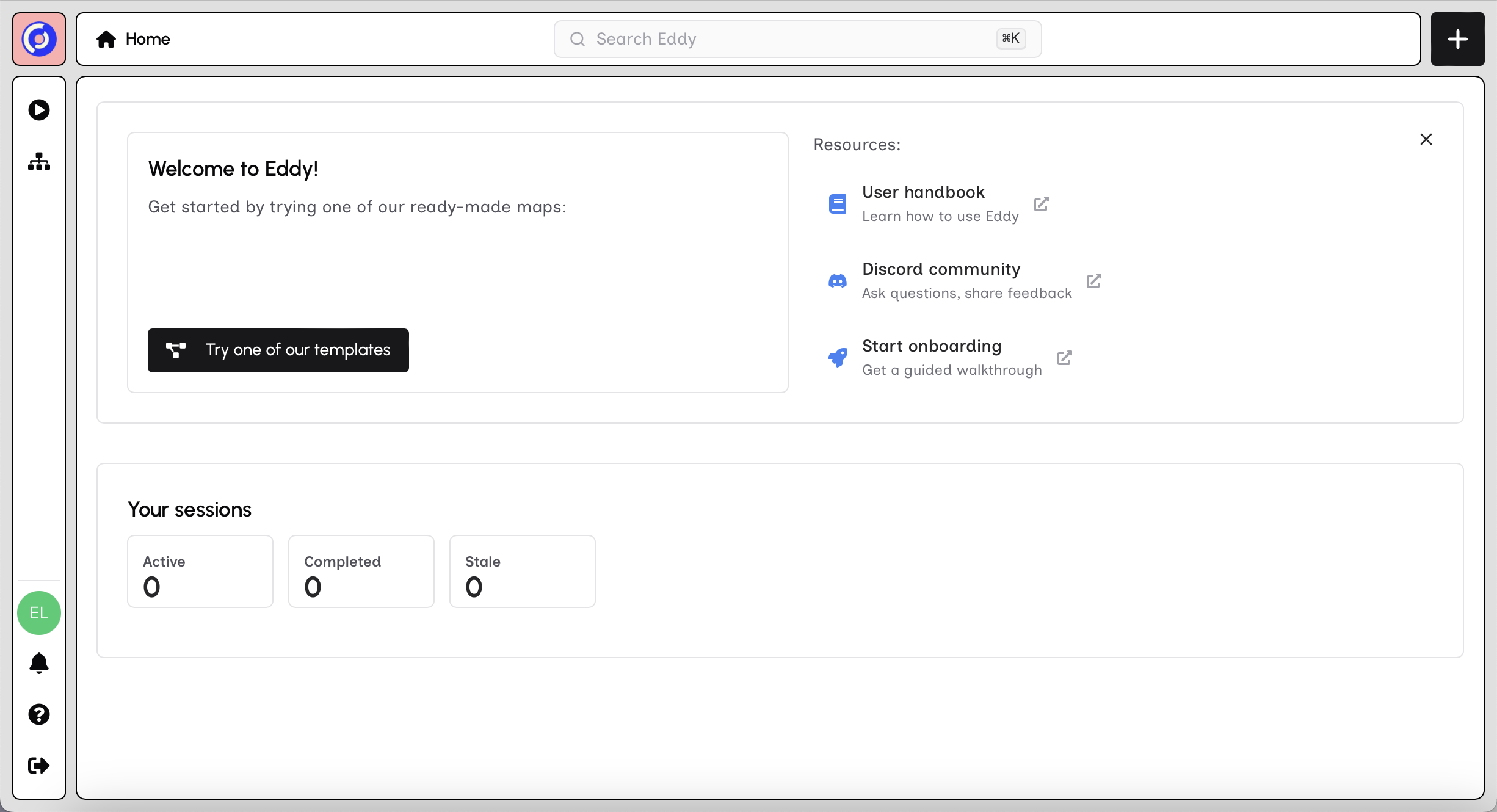
The dashboard shows:
- Welcome card — dismissible links to the tools you use first
- Recent Visits — workspaces and Maps you've recently viewed (appears once you have activity)
- Navigation bar — Sessions, profile, notifications, help, and logout
To get started, open the list of your Organizations from the sidebar.
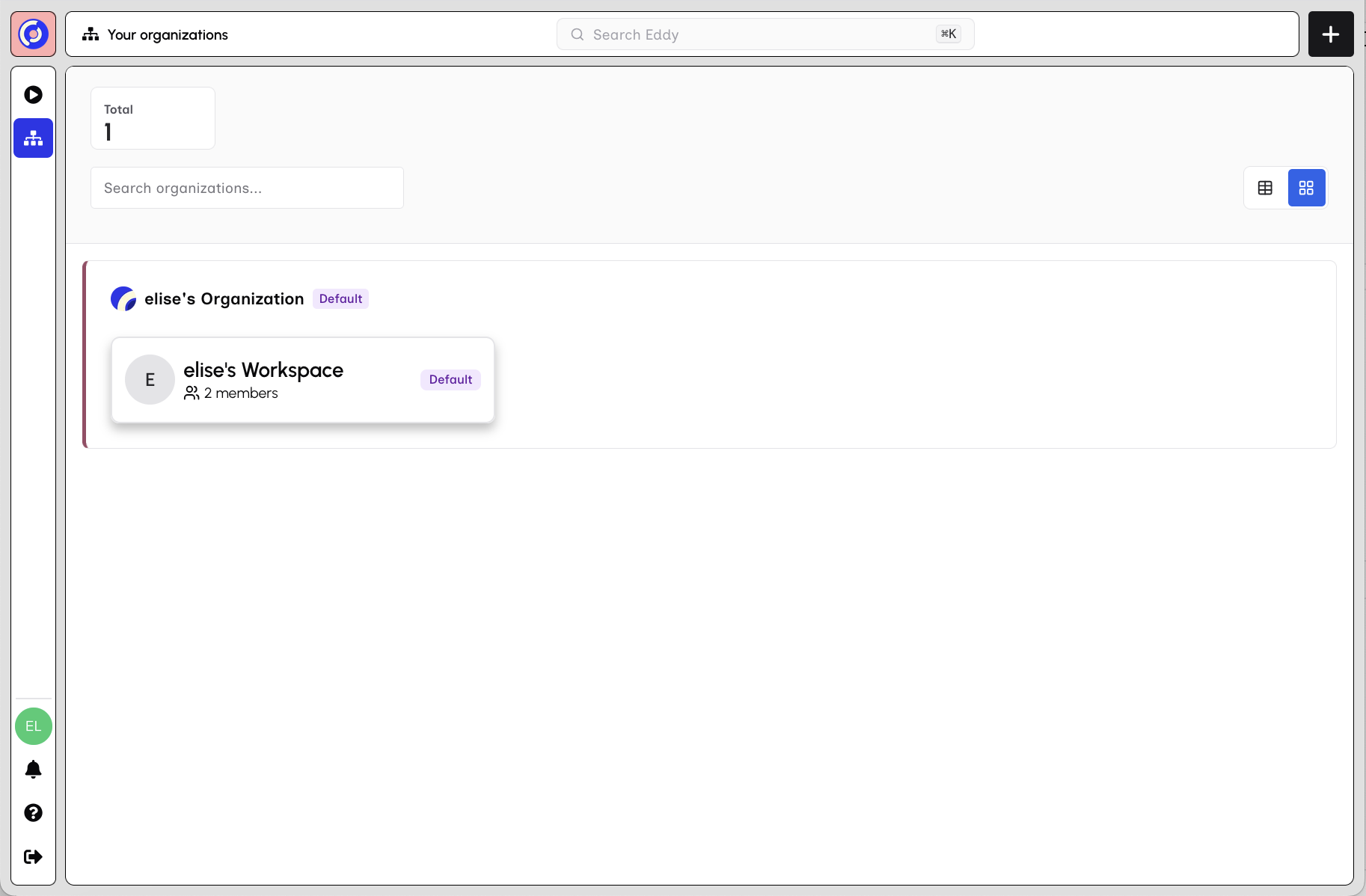
You will see your available Organizations and the workspaces within them. Click directly into the workspace that was created for you at signup.
For Organization dashboards, membership, and permissions, see Organizations.
Workspace Dashboard
Each workspace has its own dashboard. For now, it will be empty, but once you have active maps, it will show live status at a glance.
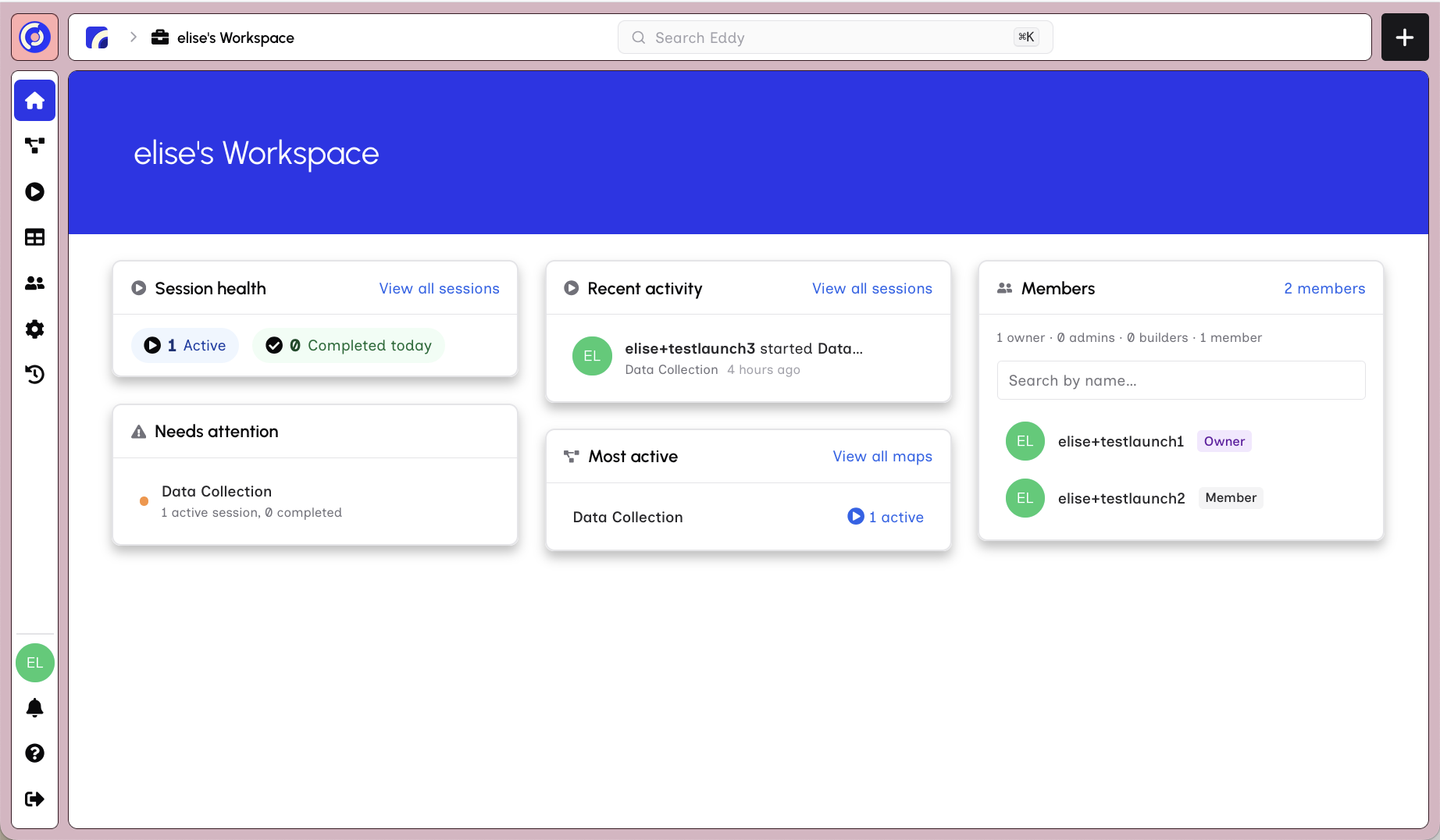
The workspace dashboard includes:
- Session health — active, stale, and completed-today counts
- Most active — Maps with the most running Sessions
- Needs attention — Maps with stale Sessions
- Members — who belongs to this workspace
- Recent activity — latest Session and Map events
Inviting a Member
To invite someone, click Members in the side navigation.
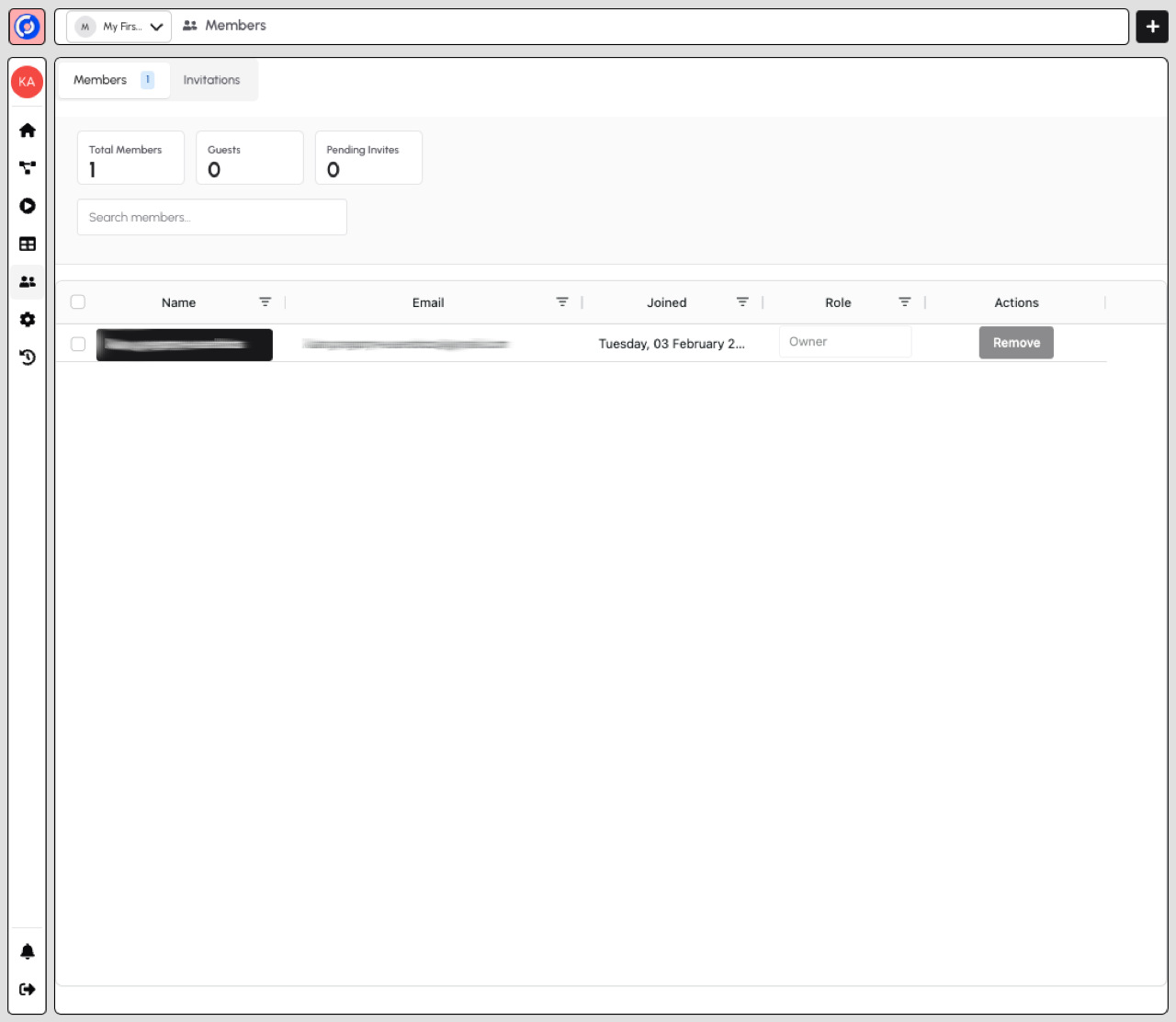
Click the + button in the top bar to open the invitation form.
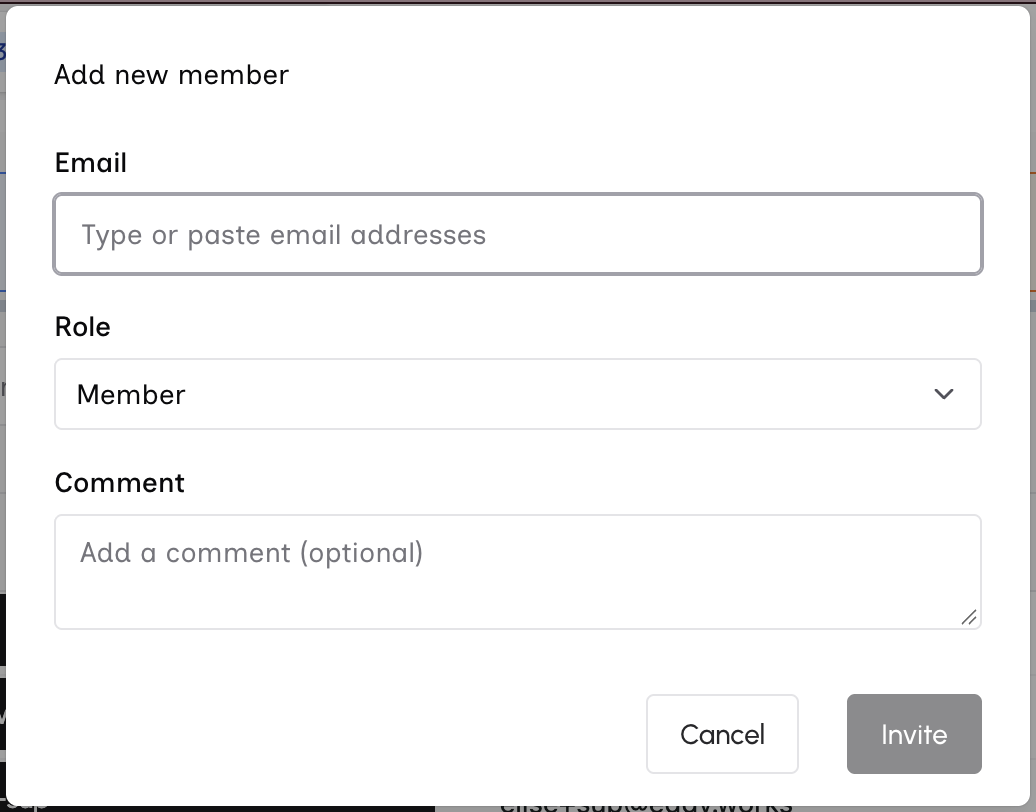
To invite new members:
- Enter one or more email addresses in the Email field — type each address and press Enter, comma, semicolon, or space to confirm it. You can also paste a list of addresses (comma- or newline-separated) and each valid email becomes a removable chip. Up to 50 emails can be added at once.
- Select a role for the new members — all recipients receive the same role. Owners and admins can choose any role up to and including their own level (the role selector is hidden when only one role is available).
- Optionally add a comment to include with the invitation email
- Click Invite to send the invitations
Each invited person receives an email showing their assigned role, with a link to join. Track pending invitations — including assigned roles — under Invitations. For membership and removal, see Membership.
Creating a Map
From an empty workspace, click Create map in the center of the dashboard. You can also use the + button in the top bar or navigate to Maps in the sidebar.
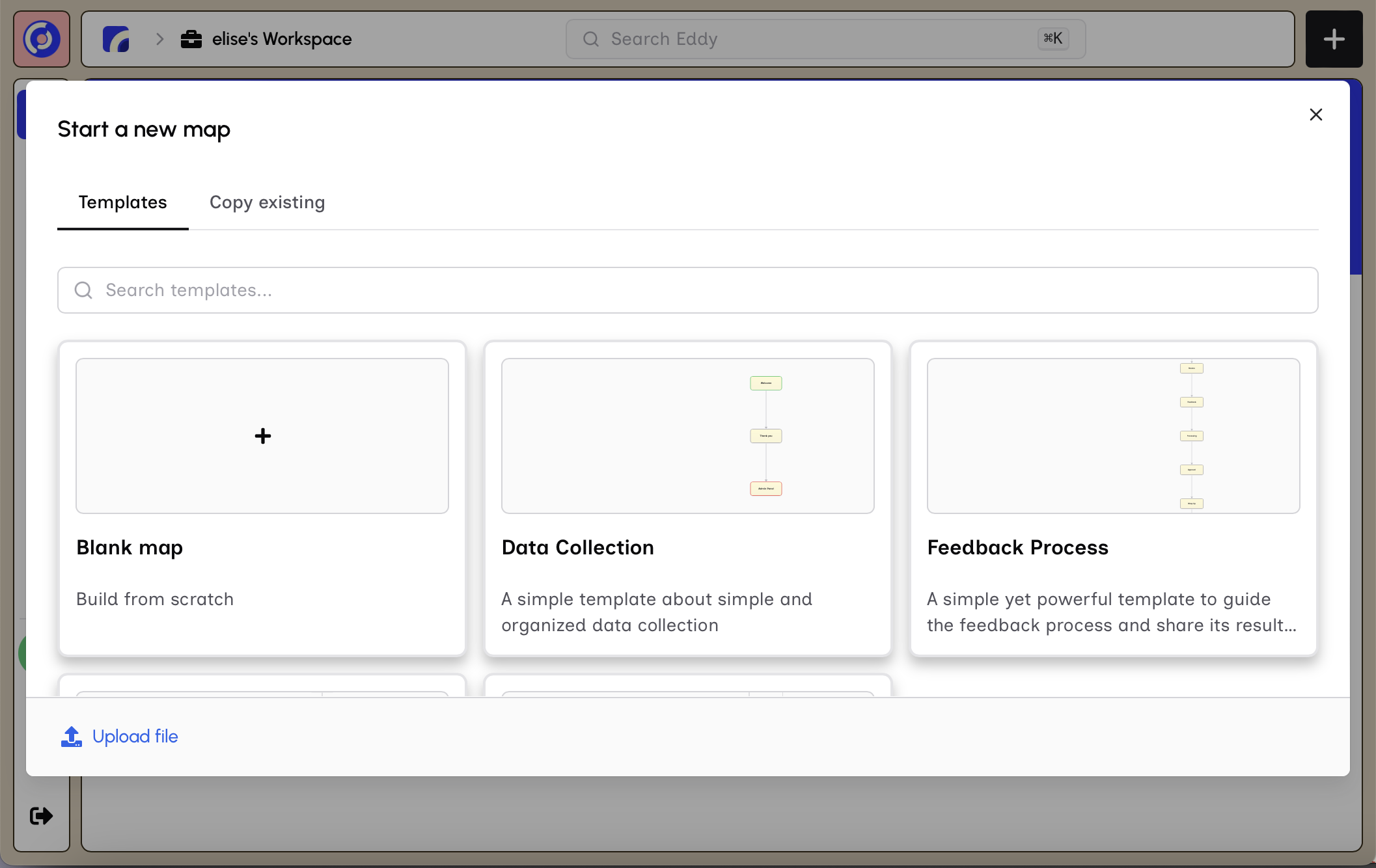
Choose how to create your Map:
- Blank map - Build from scratch
- Templates - Use a pre-built template
- Copy Existing - Duplicate a Map you have editing access to
- Upload File - Import an existing Map file
Select "Blank Map" to reveal the Map details form.
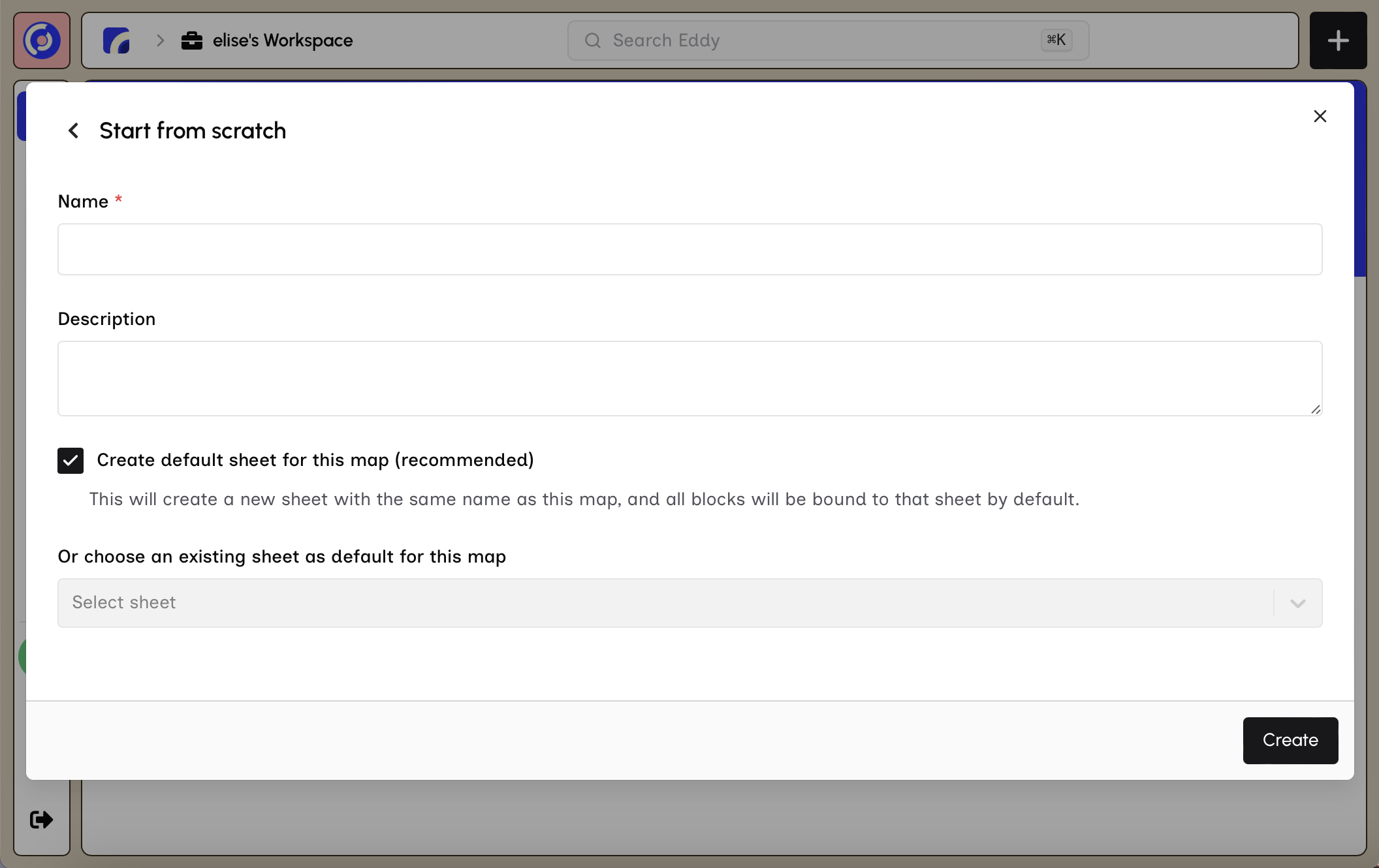
Fill in:
- Name - Give your Map a descriptive name
- Description - Explain what this Map does
- Create default Sheet - Recommended option that creates a linked data sheet
Click Save to create your Map. You'll be redirected to the Map Builder.
Next steps: See Your First Map for the builder walkthrough.