Start Links
Create and manage start links — shareable URLs that let people begin sessions on your Map.
A start link is a shareable URL that lets people begin a session on your Map. When someone clicks a start link, they see a branded landing page, sign in, and are assigned to the Map Roles you configured. They don't need to be a workspace member — if they pass any access restrictions on the link, they are added to the workspace as a guest automatically.
Start links are created and managed from the Start menu in the Map Builder's top toolbar.
Creating a start link
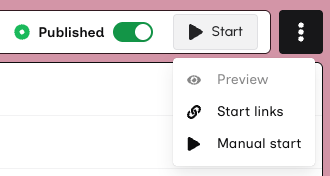
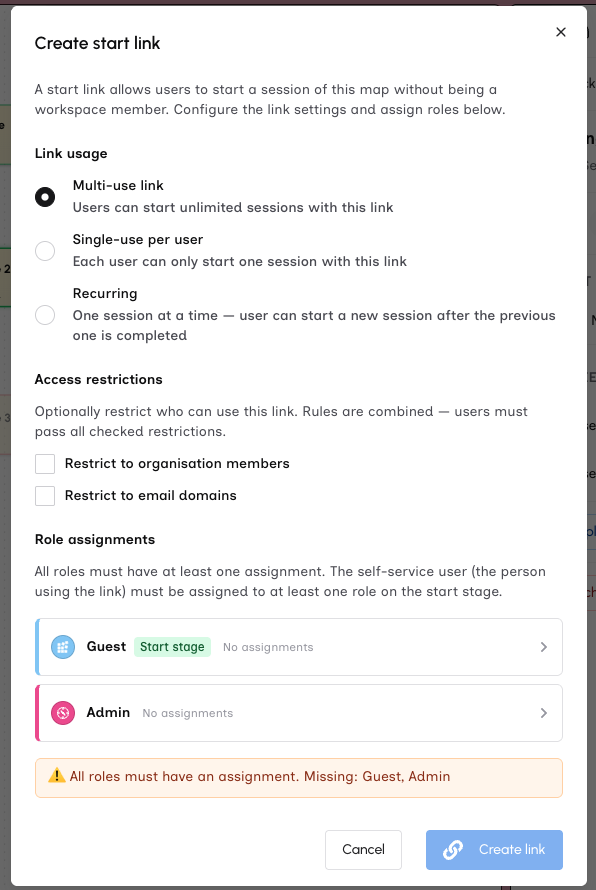
Click Start in the top toolbar, then Start Links, then Create New Link. You'll configure three things before creating the link:
- Usage mode — how many sessions a person can start
- Access restrictions — who is allowed to use the link
- Role assignments — which Map Roles are pre-assigned and to whom
All three settings are locked after the link is created and cannot be changed.
Usage modes
| Mode | Behavior |
|---|---|
| Multi-use (default) | Each person can start any number of sessions. Useful for repeatable processes. |
| Single-use | Each person can start one session. Ideal for applications, surveys, or tests where you want one submission per user. |
| Single active | Each person can have one active session at a time. When they complete it, they can start another. |
Access restrictions (scope rules)
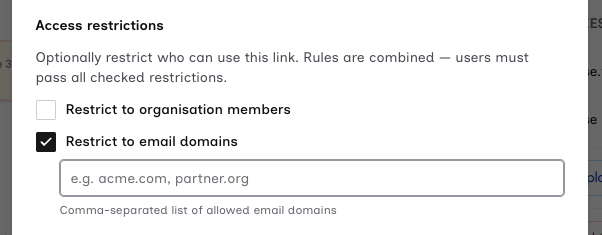
By default, anyone who signs in can use a start link. You can add restrictions to control who may start a session. Restrictions are optional and composable — if you enable more than one, a person must pass all of them.
Restrict to organization members
Only people who are members of your organization can use the link. Organization guests do not qualify — this restriction requires a full member role.
Choose this when the Map is for internal use and you do not want external users to be able to start sessions, even if they receive the link.
Restrict by email domain
Only people whose email address matches one of the domains you specify can use the link. Enter one or more domains (e.g., acme.com, partner.org). Domain matching is exact and case-insensitive.
Use this when the Map is for a specific partner or group of organizations whose email domains you know.
Combining restrictions
You can enable both restrictions on the same link. For example, restricting to organization members and the domain acme.com means a person must be both an organization member and have an @acme.com email address.
What happens when someone is denied
If a person who does not meet the restrictions tries to use the link, they will see a message explaining that they do not have access. The Map details and landing page are still visible — the restriction applies after sign-in, not before.
Resuming existing sessions
People who have already started a session through the link can still resume it, even if they no longer meet the restrictions. For example, if you restrict a link to organization members and someone who previously started a session is later removed from the organization, they can still continue their existing session — but they cannot start a new one.
Role assignments
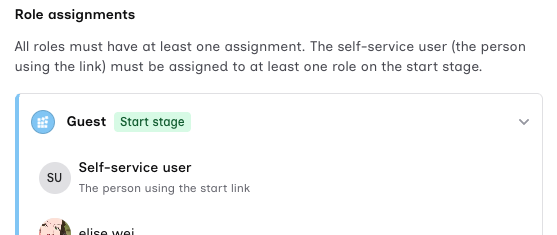
For each Map Role, choose who will be assigned when a session starts:
- Self-Service User — the person who clicks the link is assigned to this role. Use this for most external-facing Maps.
- A specific workspace member — pre-assign a known person.
At least one role must be assigned to Self-Service User, and that role must be on the Map's start stage. Otherwise, the person who clicks the link would have nothing to do.
Managing start links
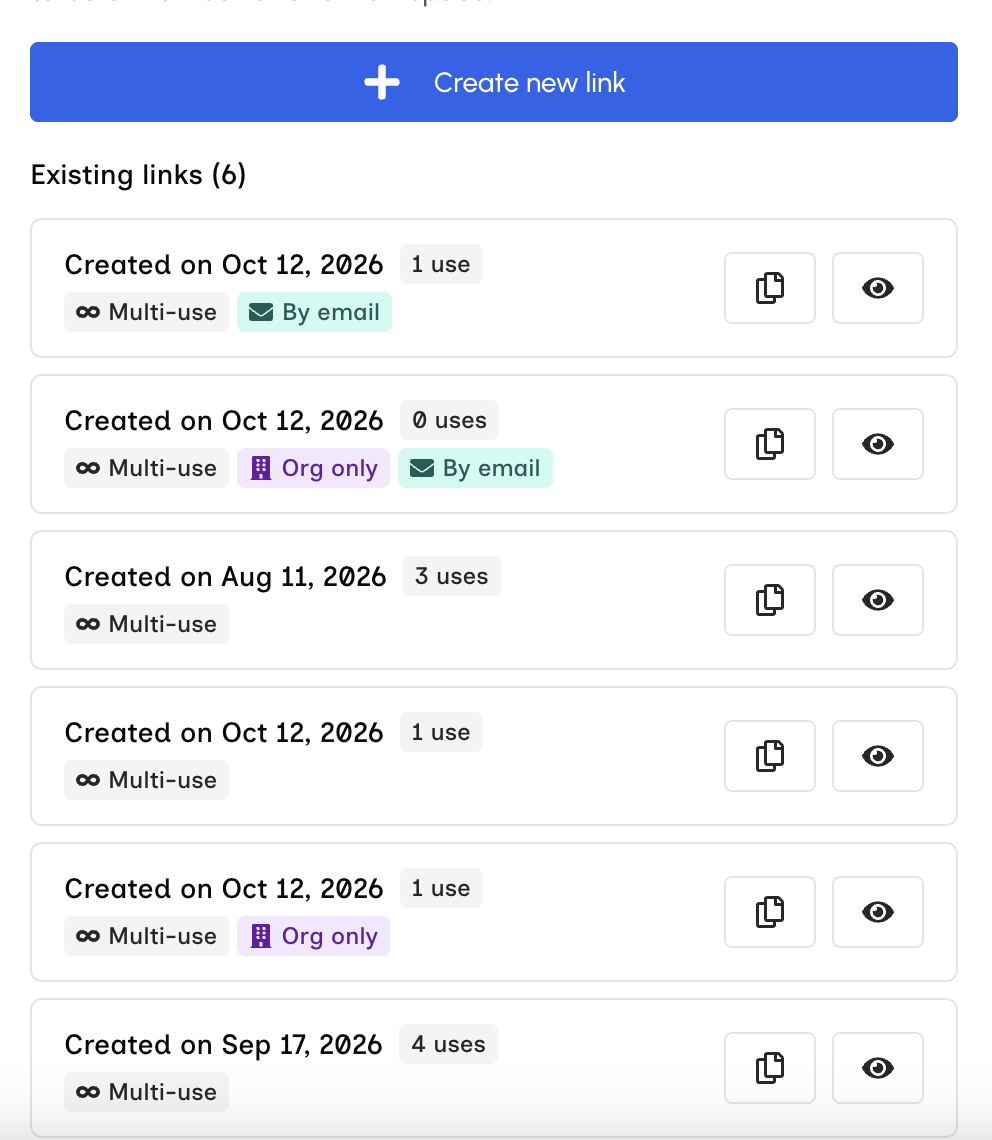
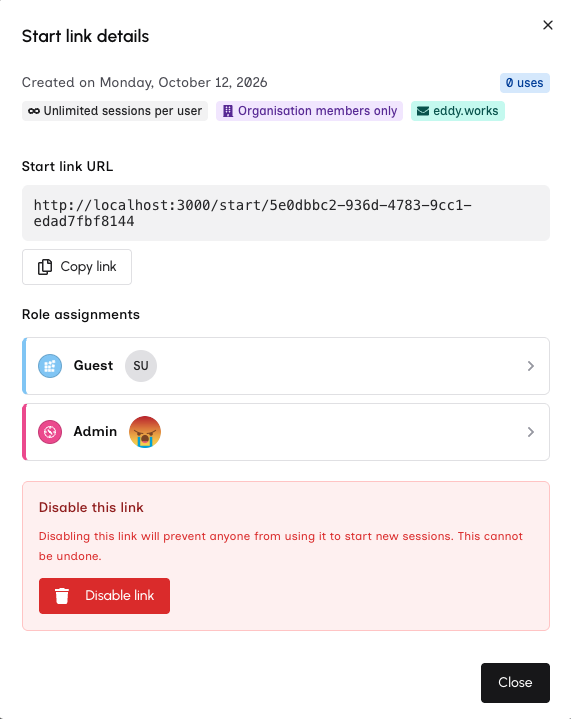
The Manage Start Links dialog lists all start links for the current Map. Each link shows:
- Creation date and usage count
- Usage mode badge (multi-use, single-use, or single active)
- Scope rule badges, if any (e.g., "Org only", "By email")
- Copy and Details buttons
Click Details to see the full link URL, role assignments, and scope rules. From the detail view, you can also disable the link, which archives it and prevents new sessions from being started. Existing sessions are unaffected.